
私の場合の東京都のマップフィルの例です。
使う方は自己責任でお願いします。
■国土数値情報のデータのマップファイル nippon_dnli_tokyo_pgis.map のダウンロードページ
■基盤地図情報のデータのマップファイル nippon_bmi_tokyo_pgis.map のダウンロードページ
2011年4月20日水曜日

2010年11月14日日曜日
GeoExt 03 GeoExt.MapPanel in an Ext.Window - Ext.Window 内の GeoExt.MapPanel
GeoExt ホームページ
http://www.geoext.org/index.html
の Example サイト
http://www.geoext.org/examples.html
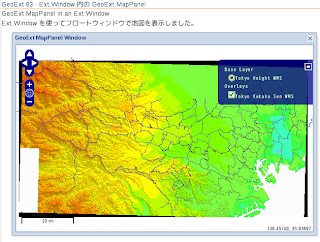
を使って東京都の地図を表示してみます。
「Map panel (in a Window)」リンクをクリックすると GeoExt.MapPanel in an Ext.Window が表示されます。
mappanel-window.js を参考にします。
JS ファイルを新規作成します。
「openlayersTokyoproj」 を右クリックして 新規 -> JavaScript ファイル をクリック。
「JavaScript ファイル」ウィンドウの「ファイル名(任意:mappanel-window.js)」に入力して「完了」ボタンをクリック。
GeoExt 02 で使用したレイヤの例を参考に以下のように JavaScript を作成します。
HTML ファイルを新規作成します。
「openlayersTokyoproj」 を右クリックして 新規 -> HTML ファイル をクリック。
「HTML ファイル」ウィンドウの「ファイル名(任意:geoext03_mappanel-window.html)」に入力して「完了」ボタンをクリック。
「charset」を「utf-8」にします。
以前使用した OpenLayers.Layer.WMS レイヤの例を参考に以下のように HTML を作成します。
(body タグ内に表示のためのタグは必要ありません。)
http://www.geoext.org/index.html
の Example サイト
http://www.geoext.org/examples.html
を使って東京都の地図を表示してみます。
「Map panel (in a Window)」リンクをクリックすると GeoExt.MapPanel in an Ext.Window が表示されます。
mappanel-window.js を参考にします。
JS ファイルを新規作成します。
「openlayersTokyoproj」 を右クリックして 新規 -> JavaScript ファイル をクリック。
「JavaScript ファイル」ウィンドウの「ファイル名(任意:mappanel-window.js)」に入力して「完了」ボタンをクリック。
GeoExt 02 で使用したレイヤの例を参考に以下のように JavaScript を作成します。
var mapPanel, map;

Ext.onReady(function() {

  map = new OpenLayers.Map('map', {
   controls: [
    new OpenLayers.Control.PanZoom(),
    new OpenLayers.Control.LayerSwitcher(),
    new OpenLayers.Control.MousePosition(),
    new OpenLayers.Control.ScaleLine()
   ],
   projection: new OpenLayers.Projection("EPSG:2456"),
   maxResolution: 'auto',
   maxExtent: new OpenLayers.Bounds(-279000,1054000,-185000,1104000),
   units: 'meters',
   displayProjection: new OpenLayers.Projection("EPSG:4326")
  });
 new Ext.Window({ // ウィンドウ表示クラス
  title: "GeoExt MapPanel Window",
  height: 400,
  width: 600,
  layout: "fit",
  items: [{
   xtype: "gx_mappanel", // コンポーネントを追加するレジストリの指定
   id: "mappanel",
   layers: [
    new OpenLayers.Layer.WMS( "Tokyo Height WMS",
     "http://192.168.1.6/cgi-bin/mapserv?",
     {
      map: '/home/nob61/mapfile/tokyo_bmi_pgis_img2.map',
      layers: 'height',
      isBaselayer: true,
      format: 'image/png'
     }
    ),
    new OpenLayers.Layer.WMS( "Tokyo Kukaku Sen WMS",
     "http://192.168.1.6/cgi-bin/mapserv?",
     {
      map: '/home/nob61/mapfile/tokyo_bmi_pgis_img2.map',
      layers: 'kukaku',
      transparent: true,
      format: 'image/png'
     }
    )
   ],
   map: map
  }]
 }).show();

 mapPanel = Ext.getCmp("mappanel"); // Ext で生成された Component を取得
});
HTML ファイルを新規作成します。
「openlayersTokyoproj」 を右クリックして 新規 -> HTML ファイル をクリック。
「HTML ファイル」ウィンドウの「ファイル名(任意:geoext03_mappanel-window.html)」に入力して「完了」ボタンをクリック。
「charset」を「utf-8」にします。
以前使用した OpenLayers.Layer.WMS レイヤの例を参考に以下のように HTML を作成します。
(body タグ内に表示のためのタグは必要ありません。)
<html>
 <head>
  <meta http-equiv="Content-Type" content="text/html; charset=utf-8" />
  <title>GeoExt 03 Ext.Window 内の GeoExt.MapPanel</title>
  <link rel="stylesheet" href="./theme/default/style.css" type="text/css" />
  <link rel="stylesheet" href="./examples/style.css" type="text/css" />

  <script src="./lib/Firebug/firebug.js"></script>
  <script src="./OpenLayers-2.10/lib/OpenLayers.js"></script>

  <script type="text/javascript" src="./lib/proj4js/lib/proj4js-compressed.js"></script>
  <script type="text/javascript" src="./lib/proj4js/lib/projCode/tmerc.js"></script>
  <script type="text/javascript" src="./lib/proj4js/lib/defs/EPSG2456.js"></script>
<!-- Ext JS ライブラリ追加 -->
  <script src="./ext-3.2.1/adapter/ext/ext-base.js" type="text/javascript"></script>
  <script src="./ext-3.2.1/ext-all.js"  type="text/javascript"></script>
  <link rel="stylesheet" type="text/css" href="./ext-3.2.1/resources/css/ext-all.css"></link> <!-- 修正 -->
<!-- GeoExt ライブラリ追加 -->
  <script src="./GeoExt/lib/GeoExt.js" type="text/javascript"></script>
  <link rel="stylesheet" type="text/css" href="./GeoExt/resources/css/geoext-all-debug.css"></link> <!-- 修正 -->
<!-- mappanel-window.js 追加 -->
  <script type="text/javascript" src="./mappanel-window.js"></script>

 </head>
 <body>

  <h1 id="title">GeoExt 03 - Ext.Window 内の GeoExt.MapPanel</h1>
  <p id="shortdesc">
   GeoExt.MapPanel in an Ext.Window
  </p>
  <div id="docs">
   <p>This example shows the how to place a MapPanel in another Ext container
    without creating a map first. See mappanel-div.html for an example that
    creates the map before creating the map panel.

   <p>この例では、最初にマップを作成することなくもう一つの Ext コンテナにMapPanelを
    配置する方法を示しています。 マップパネルを作成する前にマップを作成する例
   mappanel-div.html を参照してください。</p>
  </div>

  </body>
</html>

2010年11月13日土曜日
GeoExt 02 GeoExt.MapPanel with an Existing OpenLayers.Map - OpenLayers.Map を使った GeoExt.MapPanel
GeoExt ホームページ
http://www.geoext.org/index.html
の Example サイト
http://www.geoext.org/examples.html
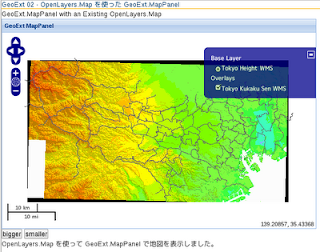
にある Map Panel の例を使って東京都の地図を表示してみます。
最初に、「Map panel」からやっていきます。
リンクをクリックすると GeoExt.MapPanel with an Existing OpenLayers.Map が表示されます。
mappanel-div.js を参考にします。
JS ファイルを新規作成します。
「openlayersTokyoproj」 を右クリックして 新規 -> JavaScript ファイル をクリック。
「JavaScript ファイル」ウィンドウの「ファイル名(任意:mappanel-div.js)」に入力して「完了」ボタンをクリック。
以前使用した OpenLayers.Layer.WMS レイヤの例を参考に以下のように JavaScript を作成します。
HTML ファイルを新規作成します。
「openlayersTokyoproj」 を右クリックして 新規 -> HTML ファイル をクリック。
「HTML ファイル」ウィンドウの「ファイル名(任意:geoext02_mappanel-olmap.html)」に入力して「完了」ボタンをクリック。
「charset」を「utf-8」にします。
以前使用した OpenLayers.Layer.WMS レイヤの例を参考に以下のように HTML を作成します。
http://www.geoext.org/index.html
の Example サイト
http://www.geoext.org/examples.html
にある Map Panel の例を使って東京都の地図を表示してみます。
最初に、「Map panel」からやっていきます。
リンクをクリックすると GeoExt.MapPanel with an Existing OpenLayers.Map が表示されます。
mappanel-div.js を参考にします。
JS ファイルを新規作成します。
「openlayersTokyoproj」 を右クリックして 新規 -> JavaScript ファイル をクリック。
「JavaScript ファイル」ウィンドウの「ファイル名(任意:mappanel-div.js)」に入力して「完了」ボタンをクリック。
以前使用した OpenLayers.Layer.WMS レイヤの例を参考に以下のように JavaScript を作成します。
var mapPanel, map, layer1, layer2;

Ext.onReady(function() { // ドキュメントが準備できたとき実行
 Ext.state.Manager.setProvider(new Ext.state.CookieProvider());
 // 状態(例えばgridのカラム幅・表示カラム・カラム表示順・ソート順)を保存。
  map = new OpenLayers.Map('map', {
   projection: new OpenLayers.Projection("EPSG:2456"),
   maxResolution: 'auto',
   maxExtent: new OpenLayers.Bounds(-279000,1054000,-185000,1104000),
   units: 'meters',
   displayProjection: new OpenLayers.Projection("EPSG:4326")
  });

  layer1 = new OpenLayers.Layer.WMS( "Tokyo Height WMS",
   "http://192.168.1.6/cgi-bin/mapserv?",
   {
    map: '/home/nob61/mapfile/tokyo_bmi_pgis_img2.map',
    layers: 'height',
    isBaselayer: true,
    format: 'image/png'
  });

  layer2 = new OpenLayers.Layer.WMS( "Tokyo Kukaku Sen WMS",
   "http://192.168.1.6/cgi-bin/mapserv?",
   {
    map: '/home/nob61/mapfile/tokyo_bmi_pgis_img2.map',
    layers: 'kukaku',
    transparent: true,
    format: 'image/png'
  });

 map.addLayers([layer1, layer2]);
 map.addControl(new OpenLayers.Control.LayerSwitcher());
 map.addControl(new OpenLayers.Control.MousePosition());
 map.addControl(new OpenLayers.Control.ScaleLine());
 map.zoomToMaxExtent();
// マップパネルの表示
 mapPanel = new GeoExt.MapPanel({
  title: "GeoExt MapPanel", // パネル上部に表示されるタイトル
  renderTo: "mappanel", // マップ描画のための id
  stateId: "mappanel", // Ext.state.CookieProvider 用
  height: 400, // パネル高さ
  width: 600, // パネル幅
  map: map, // OpenLayers.Map
//  center: new OpenLayers.LonLat(5, 45),
//  zoom: 4,
  // GetState と applyState はオーバーロード(再定義)されて、
  // パネルのサイズを格納し復元することができます。
  getState: function() {
   var state = GeoExt.MapPanel.prototype.getState.apply(this);
   state.width = this.getSize().width;
   state.height = this.getSize().height;
   return state;
  },
  applyState: function(state) {
   GeoExt.MapPanel.prototype.applyState.apply(this, arguments);
   this.width = state.width;
   this.height = state.height;
  }
 });
});
// マップパネルのサイズ変更関数
function mapSizeUp() {
 var size = mapPanel.getSize();
 size.width += 100; // ちょっと大きめに
 size.height += 100;
 mapPanel.setSize(size);
}
function mapSizeDown() {
 var size = mapPanel.getSize();
 size.width -= 100;
 size.height -= 100;
 mapPanel.setSize(size);
}
HTML ファイルを新規作成します。
「openlayersTokyoproj」 を右クリックして 新規 -> HTML ファイル をクリック。
「HTML ファイル」ウィンドウの「ファイル名(任意:geoext02_mappanel-olmap.html)」に入力して「完了」ボタンをクリック。
「charset」を「utf-8」にします。
以前使用した OpenLayers.Layer.WMS レイヤの例を参考に以下のように HTML を作成します。
<html>
 <head>
  <meta http-equiv="Content-Type" content="text/html; charset=utf-8" />
  <title>GeoExt 02 OpenLayers.Map を使った GeoExt.MapPanel</title>
  <link rel="stylesheet" href="./theme/default/style.css" type="text/css" />
  <link rel="stylesheet" href="./examples/style.css" type="text/css" />

  <script src="./lib/Firebug/firebug.js"></script>
  <script src="./OpenLayers-2.10/lib/OpenLayers.js"></script>

  <script type="text/javascript" src="./lib/proj4js/lib/proj4js-compressed.js"></script>
  <script type="text/javascript" src="./lib/proj4js/lib/projCode/tmerc.js"></script>
  <script type="text/javascript" src="./lib/proj4js/lib/defs/EPSG2456.js"></script>
<!-- Ext JS ライブラリ追加 -->
  <script src="./ext-3.2.1/adapter/ext/ext-base.js" type="text/javascript"></script>
  <script src="./ext-3.2.1/ext-all.js"  type="text/javascript"></script>
  <link rel="stylesheet" type="text/css" href="./ext-3.2.1/resources/css/ext-all.css"></link>
<!-- GeoExt ライブラリ追加 -->
  <script src="./GeoExt/lib/GeoExt.js" type="text/javascript"></script>
  <link rel="stylesheet" type="text/css" href="./GeoExt/resources/css/geoext-all-debug.css"></link>
<!-- mappanel-div.js 追加 -->
  <script type="text/javascript"src="./mappanel-div.js"></script>

 </head>
 <body>

  <h1 id="title">GeoExt 02 - OpenLayers.Map を使った GeoExt.MapPanel</h1>
  <p id="shortdesc">
   GeoExt.MapPanel with an Existing OpenLayers.Map
  </p>

  <div id="docs">
   <p>OpenLayers.Map を使って GeoExt.MapPanel で地図を表示しました。</p>
    This example shows the how to create a MapPanel with a map that
    has already been created. See mappanel-window.html for an example
    that creates the MapPanel without creating the map first.</p>

   <p>この例では、既に作成されているマップに MapPanel を作成する方法を示します。
    MapPanel が最初にマップを作成することなくMapPanelを作成する例である window.html
    を参照してください。</p>

   <p>This example makes use of a CookieProvider. The MapPanel being
    a stateful component, if you reload the page the map should be at
    the same location as previously. Also the getState and applyState
    methods are overloaded so the size of the map panel is also restored
    when refreshing the page.</p>

   <p>この例では、CookieProvider を使用しています。MapPanelは、ステートフル
   (状態を保持するよう)なコンポーネントで、ページをリロードする場合、マップが以前と
    同じ場所にあるようにします。ので、またgetStateをとapplyStateメソッドが
    オーバーロードされると、マップパネルのサイズはページ更新時に復元されます。</p>
  </div>

<!-- パネル表示 -->
  <div id="mappanel"></div>
<!-- マップ縮小・復元ボタン -->
  <input type="button" onclick="mapSizeUp()" value="bigger"></input>
  <input type="button" onclick="mapSizeDown()" value="smaller"></input>

  </body>
</html>

登録:
投稿 (Atom)